FormChime

Custom Google Forms notifications by email, SMS, or file.

Sends customised notifications when a Google Form is submitted, so you can read the response in your inbox instead of opening the sheet. Pick the fields, design the template, choose the recipients. Done in under a minute.

Marketplace install goes live shortly. The product below is exactly what ships day one.

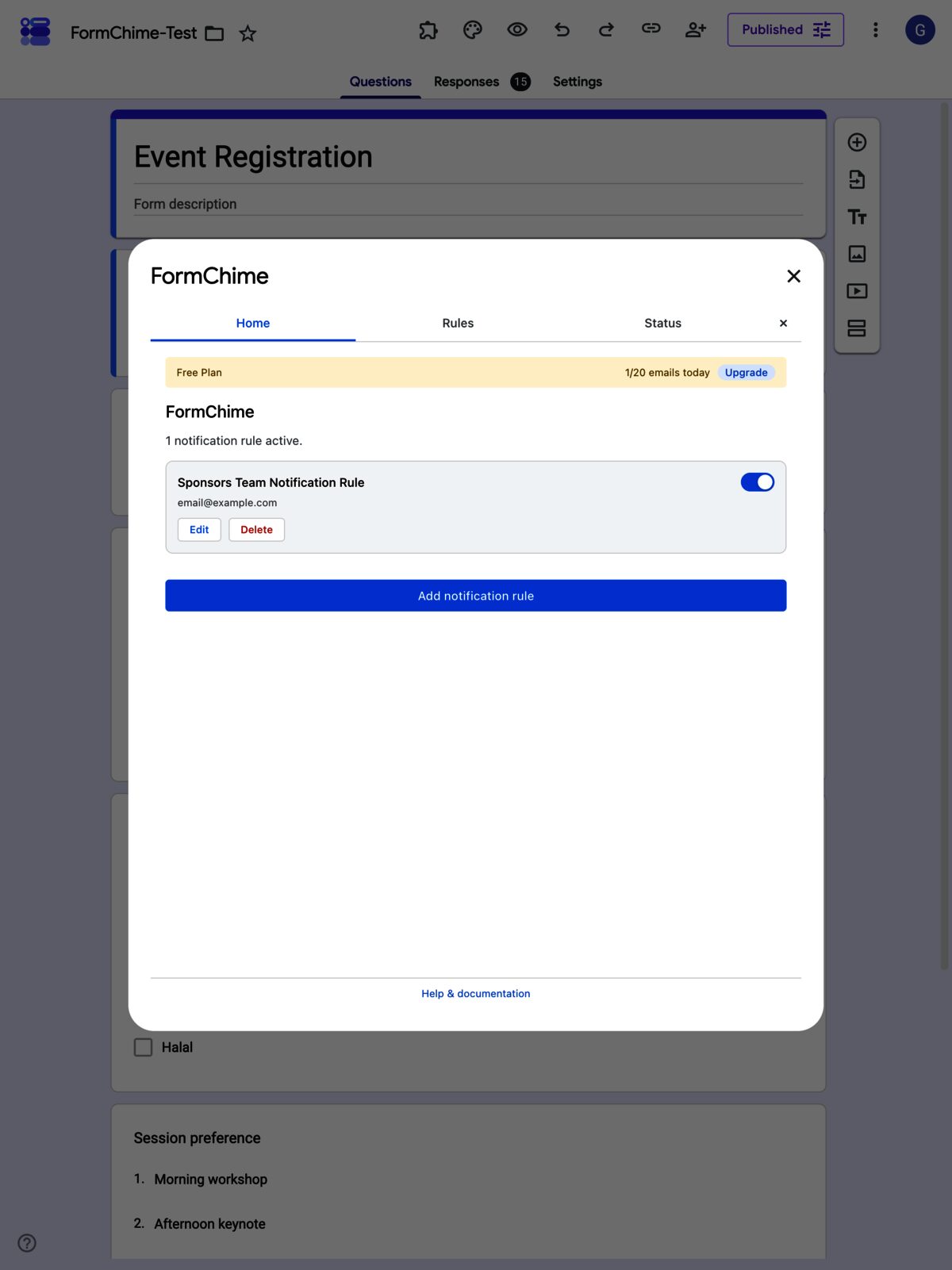
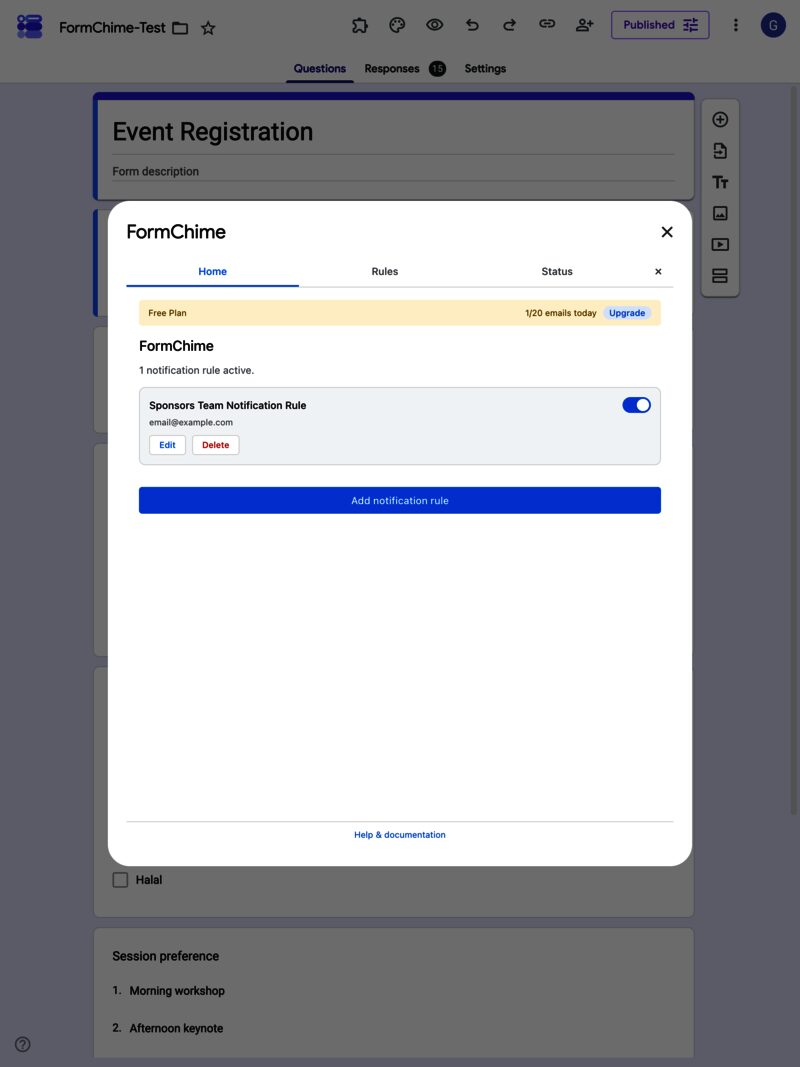
FormChime notification manager open inside Google Forms, showing one active rule on the Home tab
FormChime opens inside Google Forms as a sidebar. No new tab, no separate dashboard.

What you get

  1. Pick your fields

    Choose which form responses appear in the email notification. No more guessing which fields matter.

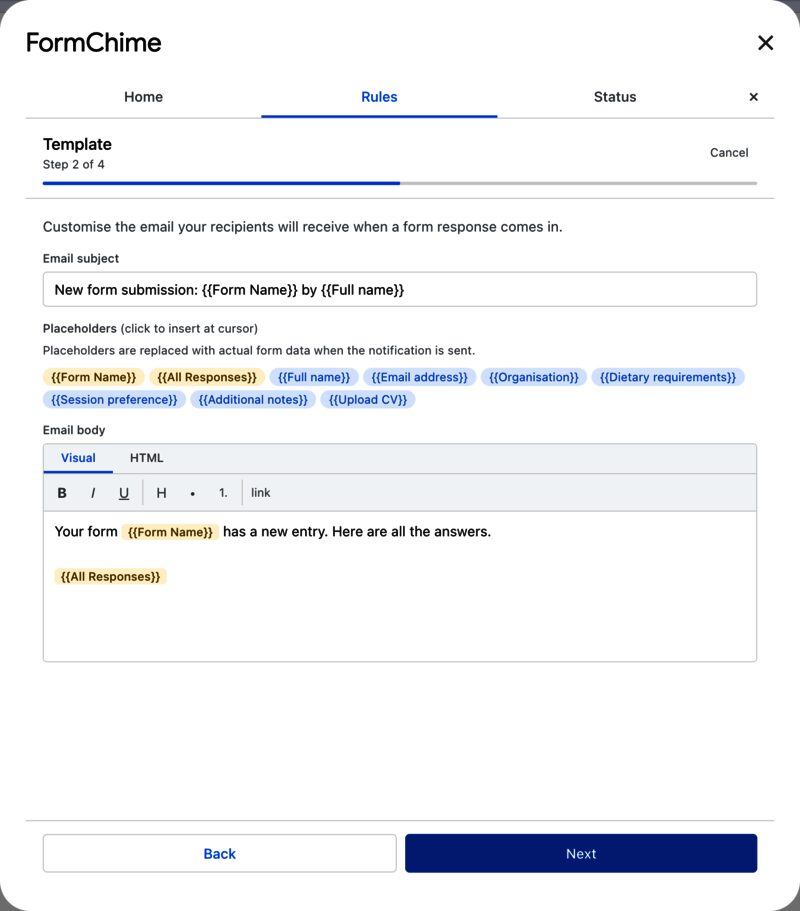
    Rule editor step 2: customising the email subject and body with placeholder chips and a visual editor
    Rule editor step 2: customising the email subject and body with placeholder chips and a visual editor
  2. Design your template

    Use placeholders like {Name} and {Email} in a rich text editor. The email looks exactly how you design it.

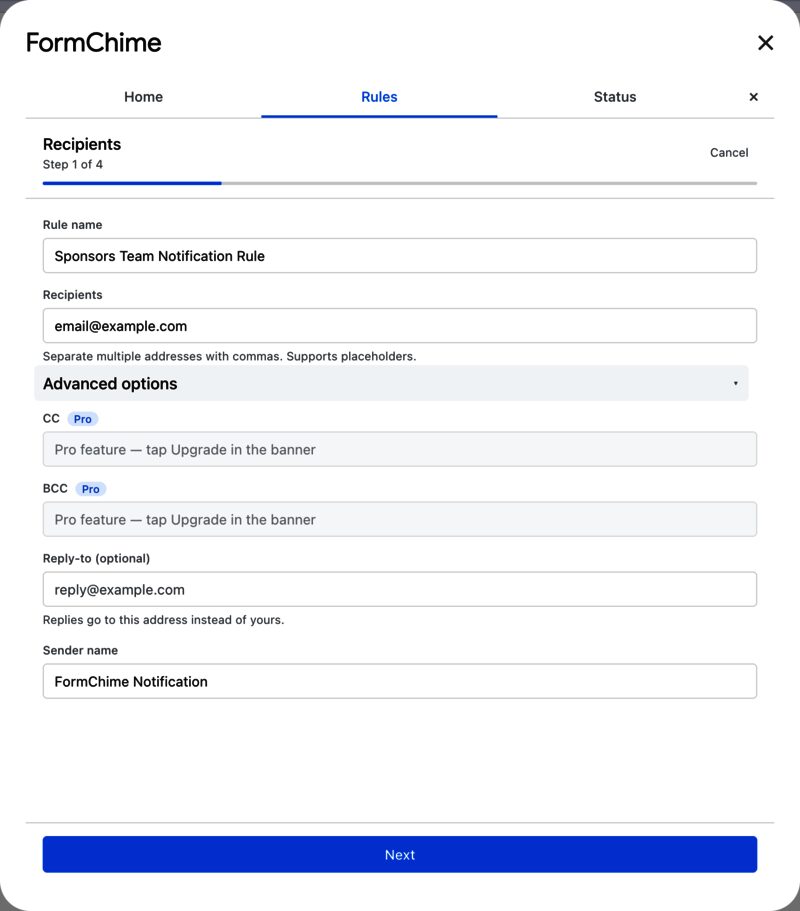
    Rule editor step 1 with advanced options expanded, showing CC, BCC, reply-to and sender name fields
    Rule editor step 1 with advanced options expanded, showing CC, BCC, reply-to and sender name fields
  3. Route to the right people

    Send different notifications to different recipients based on form answers. Sales enquiries go to sales; support tickets go to support.

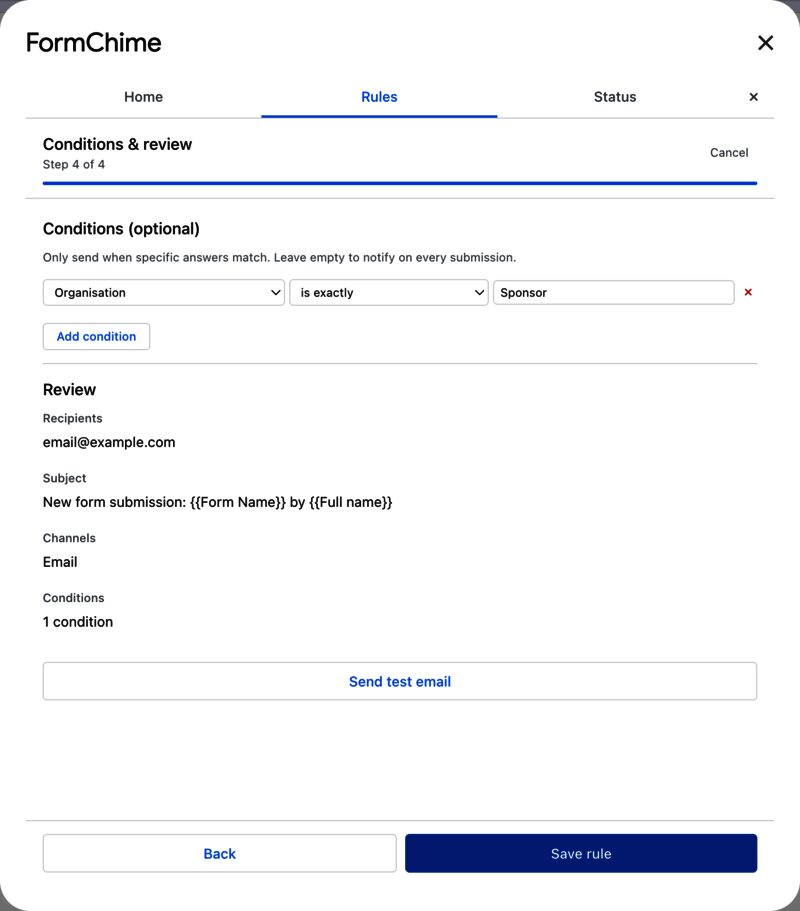
    Rule editor step 4: conditional delivery rules and a review summary before saving
    Rule editor step 4: conditional delivery rules and a review summary before saving
  4. Set it and forget it

    Runs on Google's infrastructure using Apps Script triggers, with trigger checks and delivery logging built in.

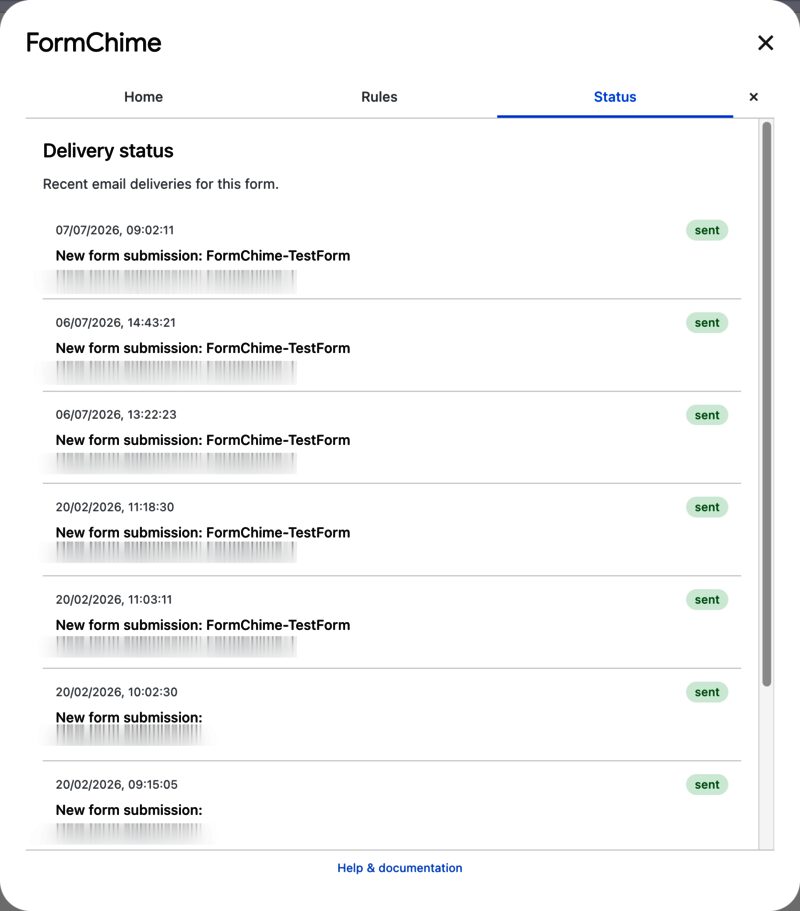
    Delivery status log showing recent email sends with timestamps, subjects and sent badges
    Delivery status log showing recent email sends with timestamps, subjects and sent badges

Set up in under a minute

Install FormChime once. Open it from any Google Form. Configure the notification you actually want, and it starts firing on the next submission.

  1. Step 1

    Open FormChime inside Google Forms

    After installing from the Marketplace, open the Add-ons menu on any of your Google Forms and pick FormChime. Everything happens in a sidebar next to your form. No separate tab, no new dashboard to learn.

    FormChime notification manager open inside Google Forms
  2. Step 2

    Add a notification rule

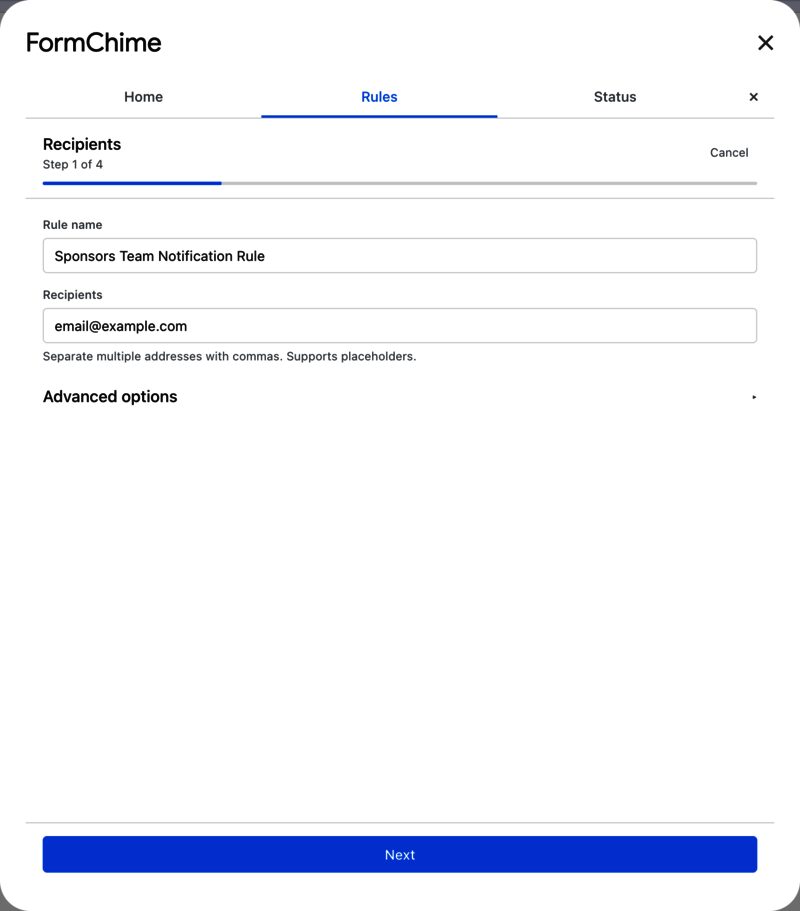
    Give the rule a name so future-you remembers what it does. Enter one or more recipient email addresses. That is the entire required setup — every other field is optional.

    Rule editor step 1: setting the rule name and recipient email addresses
  3. Step 3

    Design the email

    Write the subject and body once. Drop in placeholder chips for every response field on the form. When someone submits, FormChime replaces each chip with the actual answer.

    Rule editor step 2: customising the email subject and body with placeholder chips and a visual editor
  4. Step 4

    Set conditions and review

    Optionally route different submissions to different people. Only trigger when a specific question has a specific answer. Review the summary of what will happen before saving.

    Rule editor step 4: conditional delivery rules and a review summary before saving
  5. Step 5

    Save and it goes live

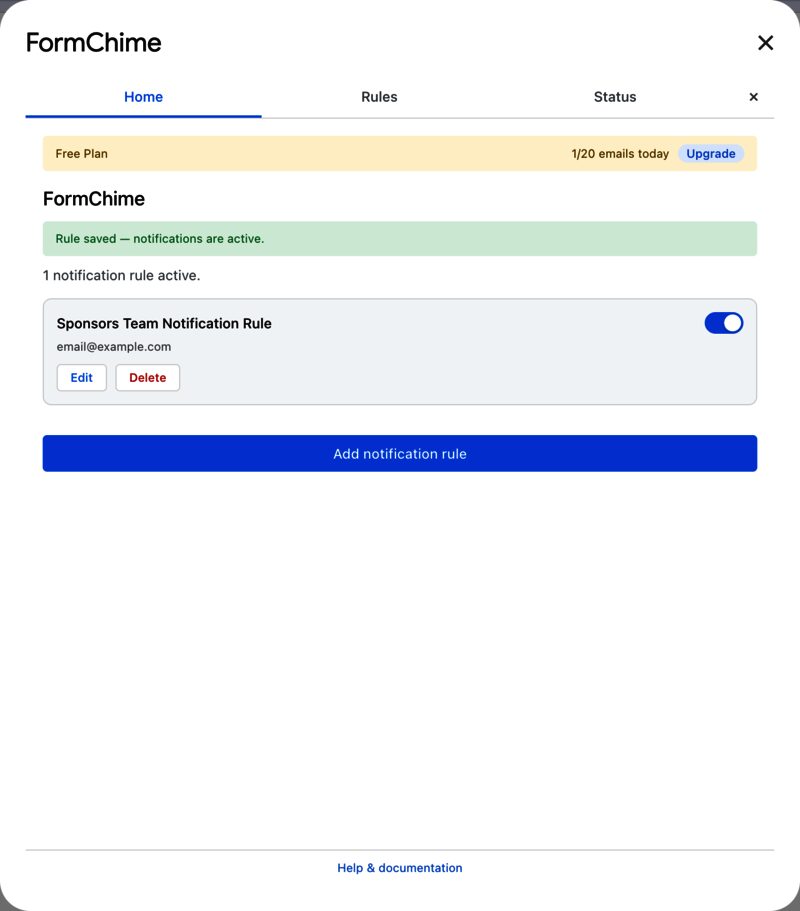
    The rule is armed the moment you save. The next form submission fires the notification, straight from your Gmail account, in the format you designed.

    Success confirmation after saving a rule, with the green banner Rule saved, notifications are active

Who actually uses this

Scholarship coordinator

A university faculty receives 200+ scholarship applications each funding round. The coordinator used to check the responses spreadsheet every few hours and manually forward details to the review panel.

Now each panel member gets a formatted email the moment an application lands. Applicant name, programme, GPA, and personal statement excerpt pulled straight from the form fields. Reviews start in minutes, not whenever someone remembers to check the sheet.

Custom templates with placeholders

Regional sales team

A building supplies company takes trade account enquiries through a Google Form. Queensland submissions need to go to Brisbane; Victoria and Tasmania to Melbourne.

Before, someone triaged every enquiry by hand and forwarded it to the right state manager. With conditional routing, FormChime reads the "State" dropdown and sends each enquiry directly to the right office. No one sits in the middle any more.

Conditional routing by form answer

IT help desk

Staff at a 120-person company submit IT requests through a Google Form — password resets, hardware faults, software access. The IT manager gets a clean summary email for every ticket: who submitted it, category, and description.

They get maybe 15 requests on a busy day. The free tier handles it without question. No licence needed, no approval process, just install and go.

Free tier — 20 emails/day

Pricing

Simple, transparent pricing: a permanent free tier, and a flat yearly price for Pro, with no per-seat fees, no usage meters, no surprise add-ons. The plans below are exactly what you'll pay; self-serve checkout is still being prepared for launch.

FormChime pricing plans. All prices in USD.
Plan Price Included
Free Free
  • 20 emails per day
  • 1 notification rule
  • Basic email templates
Pro $65/year
  • 400 emails per day
  • 15 notification rules
  • Custom HTML templates
  • CC/BCC, OR and regex conditions
  • SMS, provider webhooks, and attachments

Common questions

Is FormChime free?

Yes. The free tier sends up to 20 notification emails a day on 1 rule, and it stays free. Pro ($65/year) lifts those limits and adds custom HTML templates, conditional routing, attachments, and provider integrations.

How long does FormChime take to set up?

Under a minute. Open your Google Form, launch FormChime from the Add-ons menu, pick the fields you want, design the email, and choose who receives it.

Can I send different notifications to different people?

Yes. Conditional routing reads a form answer (a state, a department, a category) and sends each response straight to the right recipient.

Why not just use the built-in Google Forms email notification?

The built-in option sends a one-line 'you have a new response' email with no field data, no formatting, and a single recipient. FormChime puts the actual answers in the email, formats them the way you design, and routes them to the right people.

Why not just use Google’s built-in notifications?

Google Forms has a “get email notifications for new responses” toggle. It sends you a one-line email that says “New response” with a link back to the spreadsheet. No field data, no formatting, one recipient only.

That works if you’re collecting three responses a week and you’re the only person who needs to know. It falls apart the moment you need to:

The other option is writing Apps Script yourself. That works until the person who wrote it leaves, the form structure changes, or someone needs to update a recipient and can’t read JavaScript.

FormChime sits between those two extremes: more useful than the built-in toggle, less fragile than a custom script.

What is in the current build

The current implementation already covers the core notification workflow plus a Pro layer for teams that need more control:

Generic arbitrary webhooks are intentionally disabled in the current deployment posture so the outbound behaviour stays narrow and reviewable.